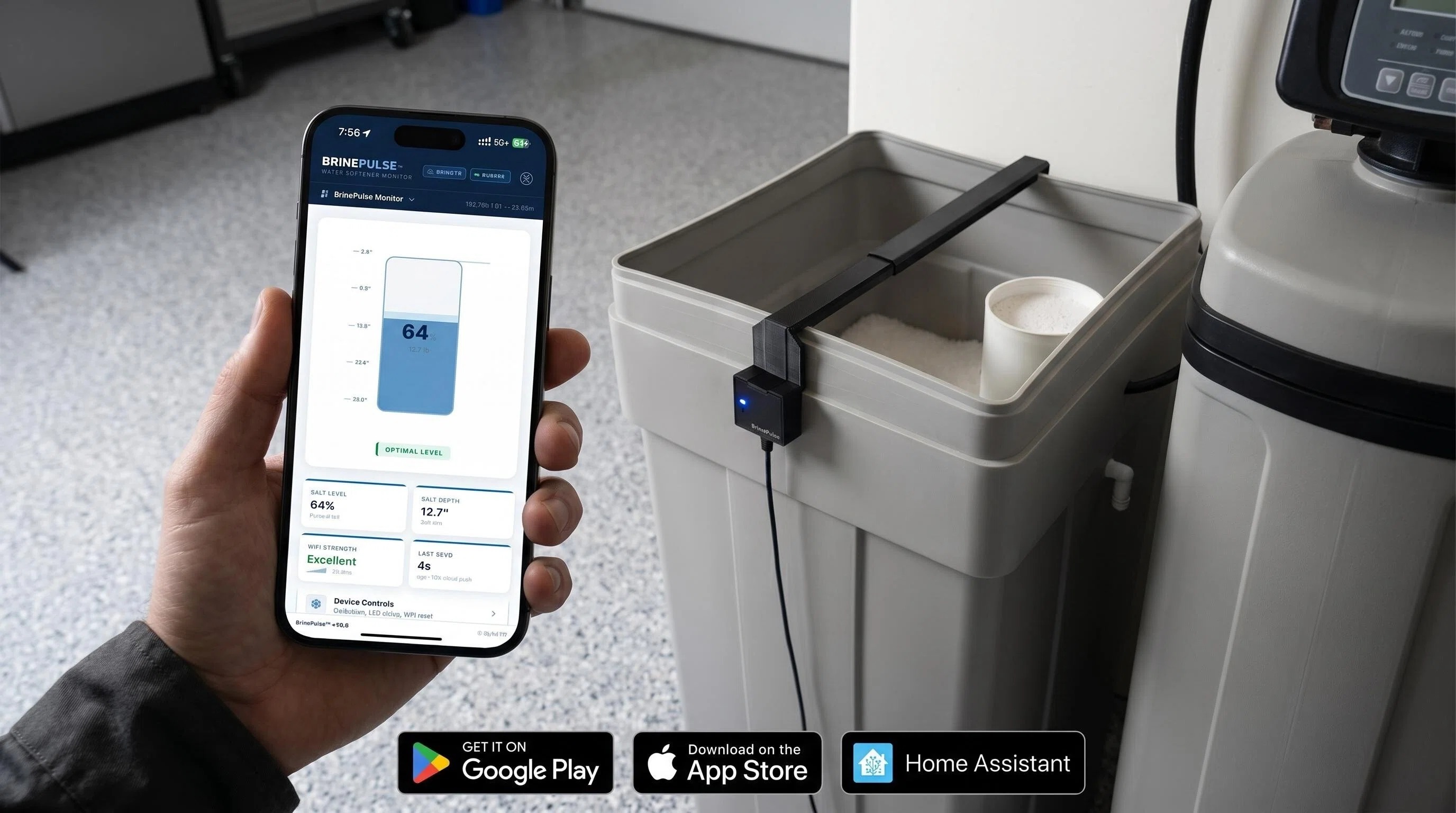
What's in the Box
- 1× BrinePulse™ Smart Cantilever Rail Assembly — complete 3D-engineered telescoping enclosure with controller housing, status LED, tactile action button, and center ToF laser sensor module.
- 1× Supporting Outer Rim Rest — self-aligning cantilever end that rests flat across the opposite brine tank rim.
- 1× Premium High-Flex USB-C Power Cable for continuous, battery-free 5V operation.
- 1× Quickstart Reference Leaflet with instant setup QR codes.
BrinePulse fits all standard round and rectangular brine tanks up to 18" (460 mm) span. If your brine tank is wider or oversized, simply email us at brinepulse.support@gmail.com and we will express-ship a custom extension adapter free of charge!
1 Mount the Hardware on Brine Tank
BrinePulse installs in under 30 seconds with zero tools, drilling, or screws. The cantilever rail simply rests across your existing brine tank rims.
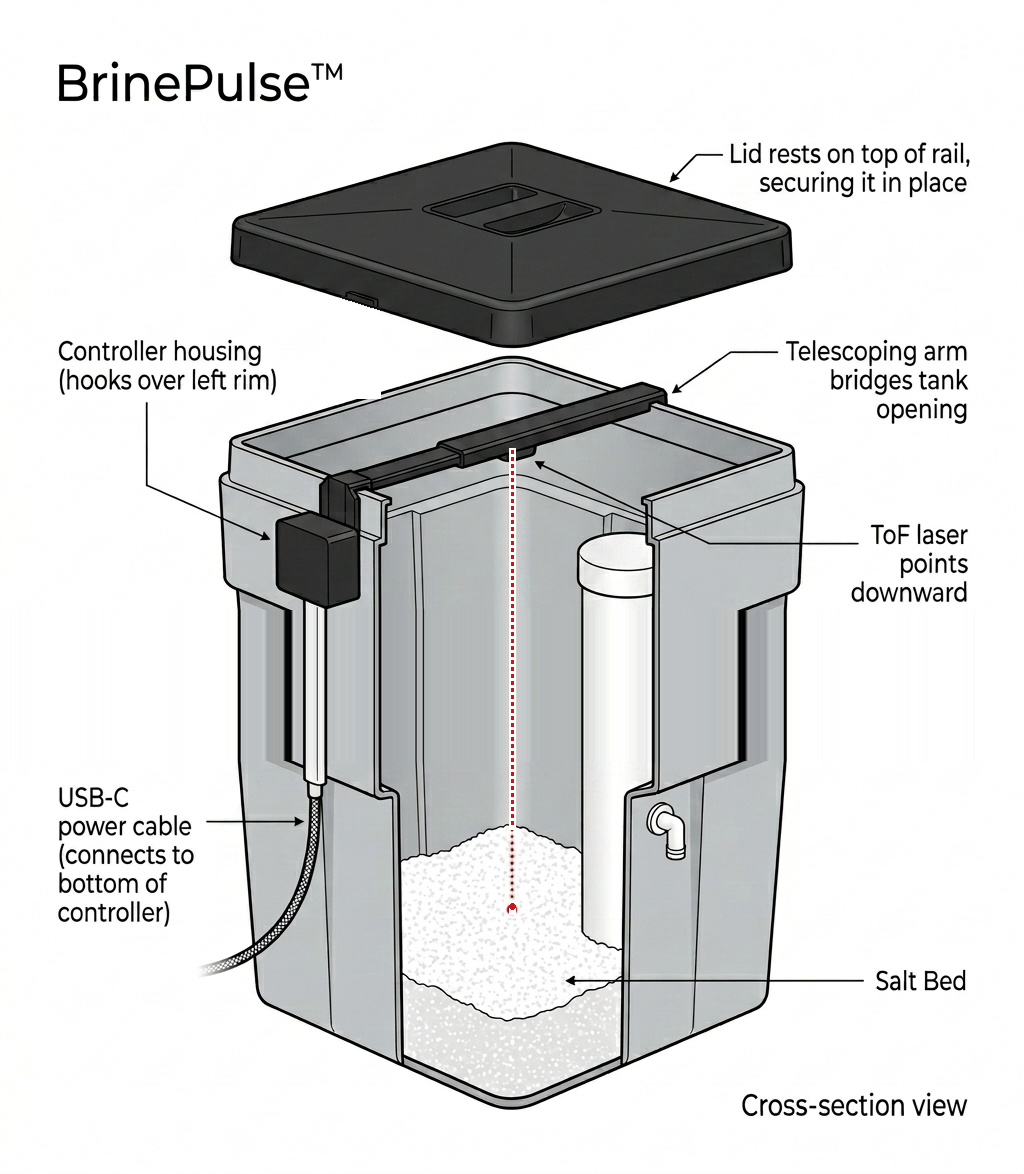
- Open the Salt Tank Cover: Remove or swing open your water softener brine tank lid.
- Hook the Controller Housing: Take the left end of the rail (the main controller housing with the USB-C port and button) and hook it firmly over the left tank rim so the housing hangs on the outside of the tank.
- Position the Center Sensor: Slide and extend the telescoping rail across the opening until the center laser sensor is positioned directly above the open salt bed. Ensure the downward-facing laser has a clear, unobstructed line of sight to the salt (keep it clear of the internal vertical brine well tube).
- Rest the Supporting Bracket: Lower the right bracket onto the opposite tank rim so the assembly sits stable and flat.
- Connect 5V USB-C Power: Plug the included USB-C cable into the controller housing and connect to any standard 5V USB wall charger (1A or greater). The status LED will immediately begin slowly pulsing.
Position the center sensor at least 2 inches away from the cylindrical brine well tube. This ensures the laser measures true salt depth rather than the plastic float pipe.
2 Connect to Wi-Fi
BrinePulse features pure Wi-Fi SoftAP onboarding — no finicky Bluetooth pairing required. It connects directly to your home 2.4 GHz network.
- Power Up & Wait 15 Seconds: When powered on, BrinePulse broadcasts a temporary setup network named
BrinePulse-Setup(orBrinePulse-XXXXXX). - Join Setup Network: On your phone, tablet, or laptop, open Wi-Fi settings and connect to
BrinePulse-Setup. When prompted for password, enter:setup1234 - Open Captive Portal: The setup page will open automatically. (If it doesn't open within a few seconds, open your browser and navigate to
http://192.168.4.1). - Enter Home Wi-Fi Credentials: Select your 2.4 GHz home Wi-Fi network from the list, type your password, and click Save.
- LED Confirmation: BrinePulse will connect to your router. The status LED will turn solid Blue to confirm that the device is online.
If Android displays a prompt saying "This Wi-Fi network has no internet access", tap "Stay Connected" so your phone doesn't disconnect before entering your Wi-Fi password.
3 Connect with Mobile App & Web Dashboard
Once on your Wi-Fi, BrinePulse provides real-time salt telemetry via the unified BrineLink mobile app and a built-in local web dashboard.


Linking Device in the App
- Open the BrineLink / BrinePulse app and tap Add Device.
- The app automatically scans your local network for your sensor (~15 to 45 seconds).
- Once detected, assign your water softener name (e.g. "Basement Softener") and salt capacity. Live salt % appears immediately!
Local Web Dashboard (Zero Cloud Required)
You can also access the monitor directly from any web browser on your home network by visiting:
4 Calibrate Empty Salt Baseline
BrinePulse comes pre-configured with standard factory dimensions (50 mm full to 800 mm empty floor), which works out of the box for most standard water softeners. For pinpoint accuracy tailored to your specific tank height, calibrate the floor baseline when your salt level is low.
Perform empty calibration when the salt level drops near the bottom grid/plate of your brine tank, before refilling with fresh salt bags.
Option A: Hardware Action Button (Instant)
- When your tank is empty or nearly empty, locate the button on the controller housing.
- Press and hold the button for 5 seconds until the Blue status LED flashes twice.
- Release the button. The current distance to the bottom floor is now permanently saved as 0% Empty.
Option B: From the Mobile App or Web Dashboard
- In the BrinePulse app or local web UI, tap Calibrate Empty Tank.
- Confirm when prompted. The zero baseline updates instantly in onboard flash memory.
Hardware Button & Status Indicators
The integrated diffused Blue status LED and tactile action button provide immediate diagnostic feedback directly at your softener tank without needing a phone or computer.
Multi-Function Button Controls
| Action | Duration | Function | LED Response |
|---|---|---|---|
| Quick Tap | < 5 seconds | Force Immediate Sensor Reading / Refresh | Single Blue Flash |
| Hold 5–9 Seconds | 5 to 9 seconds | Calibrate Empty Tank Floor (0%) | Double Blue Flash (flashes twice at 5s) |
| Hold 10–14 Seconds | 10 to 14 seconds | Reset Calibration to Factory Defaults (50mm / 800mm) | Triple Blue Flash (flashes 3× at 10s) |
| Hold 15+ Seconds | > 15 seconds | Reset Wi-Fi Network Credentials (re-enter AP setup mode) | Rapid 5× Blue Flash → Slow Pulse |
Status LED Blink Pattern Reference
Note: BrinePulse features a single high-visibility Blue LED. Operational states and hold confirmations are indicated by blink cadence and pulse counts (salt level is monitored via the mobile app or Home Assistant):
| LED Pattern | System / Connection Status | Meaning & Recommended Action |
|---|---|---|
| Solid Blue (Steady On) | Normal Monitoring & Online | Connected to Wi-Fi network and actively monitoring salt depth. System healthy. (Can be toggled off via app or Home Assistant). |
| Slow Continuous Pulse | Wi-Fi Setup / Connecting (1 Hz) | Broadcasting BrinePulse-Setup hotspot or associating with your home router. Connect phone to setup hotspot if configuring. |
| Double Blue Flash | Empty Floor Baseline Confirmed (0%) | Triggered at 5s button hold. Current floor distance successfully saved to onboard flash storage as 0% empty baseline. |
| Triple Blue Flash | Factory Calibration Reset Confirmed | Triggered at 10s button hold. Sensor calibration reset to defaults (Full: 50mm, Empty: 800mm). Wi-Fi and Cloud ID preserved. |
| Rapid 5× Blue Flash | Wi-Fi Credentials Erased | Triggered at 15s button hold. Wi-Fi credentials wiped from NVS; device reboots into BrinePulse-Setup setup mode. Device Cloud ID is preserved. |
| Off | No Power or LED Toggled Off | Check 5V USB-C power connection, or toggle LED switch back on in the mobile app or Home Assistant. |
Home Assistant & ESPHome Integration
BrinePulse natively integrates with Home Assistant via the official ESPHome integration — delivering 100% local, lightning-fast, encrypted updates with zero cloud dependencies.
Step 1 — Automatic Discovery (Recommended)
Once BrinePulse joins your Wi-Fi, Home Assistant automatically discovers it under Settings → Devices & Services.
- Look for BrinePulse in the Discovered section at the top of the Integrations page.
- Click Configure.
- When prompted for an Encryption Key, enter:
w8j3YZuSYXZY/oEI520oW2Vj83LpXagyb5UxeqyXP40=
- Click Submit. All salt sensors, switches, and buttons import automatically.
The shared API encryption key can be retrieved from two places:
- This setup guide — copy the key from the box above.
- Device web UI — open
http://brinepulse-XXXXXX.local(or the device IP from your router/app) and copy the key from the HA Encryption Key entity row.
⚠️ The encryption key is not printed on the physical device or packaging.
Step 2 — Manual Setup (if auto-discovery does not appear)
- Go to Settings → Devices & Services → Add Integration.
- Search for ESPHome.
- Enter Host:
brinepulse-XXXXXX.local(replaceXXXXXXwith your device's 6-character MAC suffix, or enter the local IP address). Port:6053. - When prompted for the Encryption Key, enter:
w8j3YZuSYXZY/oEI520oW2Vj83LpXagyb5UxeqyXP40=
Available Entities in Home Assistant
| Type | Entities & Description |
|---|---|
| Sensors |
sensor.salt_level_percent (0%–100% salt level percentage)sensor.raw_distance (current distance to salt surface in mm)sensor.salt_volume (calculated salt mass / volume)sensor.empty_baseline_distance (calibrated floor distance, e.g. 800 mm)sensor.full_threshold_distance (full tank distance, e.g. 50 mm)sensor.wifi_signal_strength (Wi-Fi RSSI in dBm)
|
| Text Sensors |
text_sensor.device_cloud_id (Unique device UUID)text_sensor.ha_encryption_key (API encryption key)text_sensor.wifi_ip_address, text_sensor.wifi_ssid
|
| Switches |
switch.led_control (Enable or disable status LED indicator)
|
| Buttons |
button.calibrate_empty_tank (Trigger empty tank calibration remotely)button.restart_device (Reboot ESP32 controller)
|
Example Automation: Low Salt Smartphone Notification
Add this automation in Home Assistant to receive a notification on your phone when salt drops below 20%:
alias: "Notify When Water Softener Salt Is Low"
trigger:
  - platform: numeric_state
    entity_id: sensor.salt_level_percent
    below: 20
action:
  - service: notify.notify
    data:
      title: "Water Softener Alert"
      message: "BrinePulse reports your salt level is down to {{ states('sensor.salt_level_percent') }}%. Please add 2 bags of salt."
mode: single
Firmware & Manual Updates
BrinePulse runs native open ESPHome firmware with full Over-The-Air (OTA) wireless update capabilities. You can update wirelessly via Home Assistant, through the device web interface, or download the compiled binary directly:
Need Assistance or a Larger Rail?
Our direct engineering team is ready to help with mounting, calibration, or network connectivity. If your brine tank is wider than our standard 18" rail, let us know and we'll send a free extension adapter!