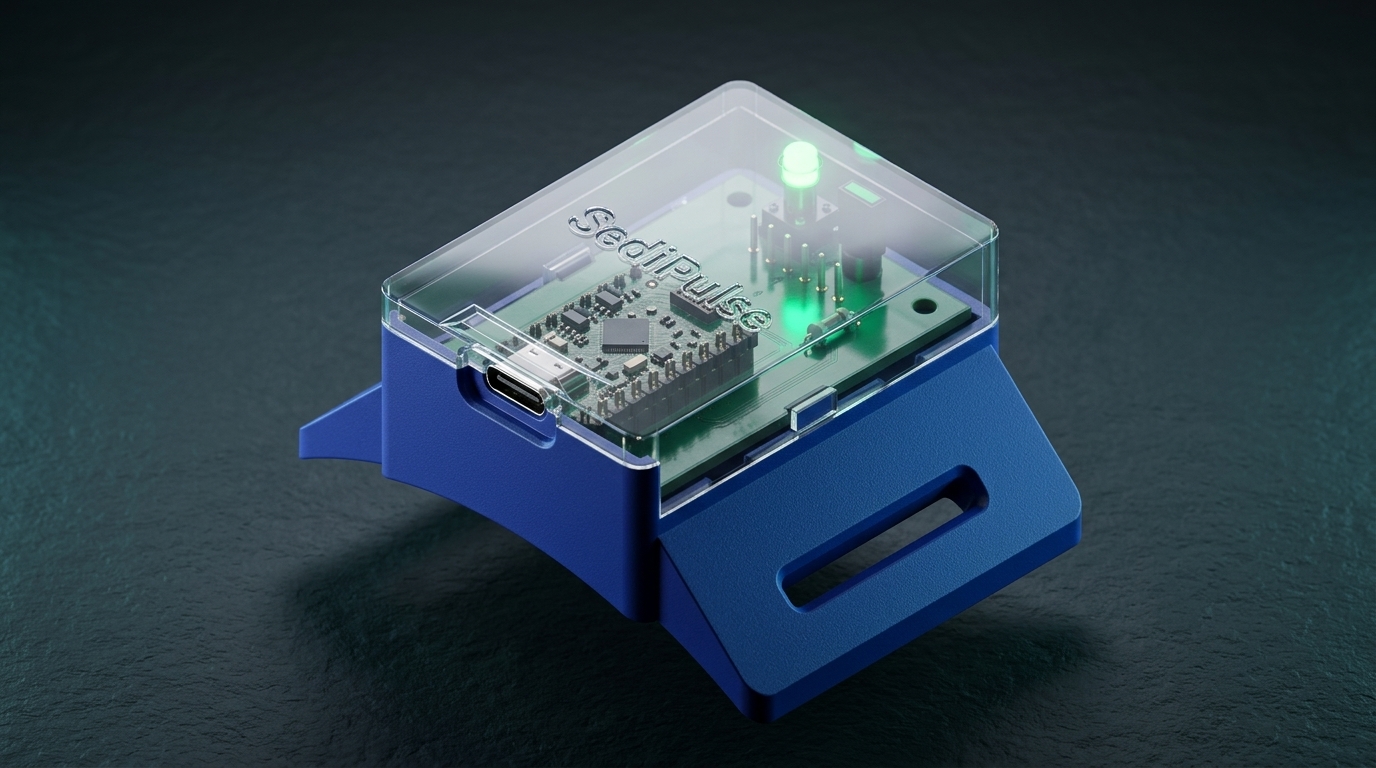
What's in the Box
- 1× SediPulse™ Optical Monitor with precision curved housing bracket and light-seal optical gasket.
- 1× Heavy-Duty 1" (25 mm) Hook & Loop Strap with Non-Slip Rubber Backing — cut-to-length adjustable strap with high-grip inner rubber that grips smooth clear filter canisters securely without slippage. Fastens flat onto itself with heavy-duty Velcro — no buckles or tools required.
- 1× USB-C Power Cable for continuous, maintenance-free operation.
- 1× Quickstart Reference Card with instant setup QR codes.
SediPulse is designed for standard heavy-duty clear whole-house sediment filter sumps, including the Culligan WH-HD200-C (133 mm / 5.25" Outer Diameter) and compatible 10" and 20" clear Big Blue filter housings. For accurate optical readings, the filter sump housing must be clear/transparent.
1 Mount SediPulse on Filter Housing
SediPulse installs completely non-invasively on the outside of your existing filter canister. There is no plumbing to cut, no water pressure to bleed, and zero risk of leaks.
- Clean the Canister Exterior: Wipe down the outside of your clear filter canister with a dry microfiber cloth to remove dust, water spots, or condensation.
- Position SediPulse: Hold SediPulse vertically against the middle section of the clear canister cylinder. Ensure the curved cradle of the unit aligns flush against the curvature of the canister.
- Thread the Non-Slip Hook & Loop Strap:
- Pass the 1" strap through the left mounting loop of the SediPulse bracket.
- Ensure the rubber non-slip backing faces inward against the smooth surface of the clear canister.
- Wrap the strap firmly around the back of the canister and feed it through the right mounting loop.
- Pull the strap firmly to compress the soft optical gasket flush against the canister wall, then press the hook-and-loop Velcro closure firmly onto itself to lock securely. (No loose velcro closures or tools needed).
- Connect Power: Plug the included USB-C cable into the bottom port of SediPulse and connect it to any standard 5V USB wall adapter (1A or greater). The status indicator LED will begin pulsing.
Ensure the strap is cinched snugly so the soft black optical gasket makes continuous, flush contact with the canister wall. This seals out external ambient room light for maximum optical precision.
2 Connect to Wi-Fi
SediPulse connects directly to your home 2.4 GHz Wi-Fi network without requiring any proprietary hubs or bridges.
- Power Up: When powered on for the first time, SediPulse automatically enters setup mode (indicated by a slow-blinking Blue status LED).
- Open Wi-Fi Settings: On your phone or computer, open your Wi-Fi settings and look for the network named
SediPulse-Setup(orSediPulse-XXXXXX). - Connect to Captive Portal: Connect to the network. A captive portal page will open automatically (if it does not open, open your browser and go to
http://192.168.4.1). - Select Your Home Wi-Fi: Choose your 2.4 GHz Wi-Fi network from the list, enter your Wi-Fi password, and tap Save.
- Connection Confirmation: SediPulse will connect to your network. The status LED illuminates steady Blue to confirm a successful connection and remains on during normal monitoring.
3 Clean Filter Baseline Calibration (Tare)
To accurately track particulate buildup over time, SediPulse uses a one-touch Clean Filter Baseline (Tare) calibration. This establishes a baseline of your fresh filter cartridge inside your specific water conditions.
Perform this calibration immediately after installing a brand-new, clean sediment filter cartridge and turning the main water supply back on so the canister is filled with clear water.
Option A: Using the Hardware Button (Instant)
- With the fresh filter installed and water running clear, locate the tactile button on the top face of SediPulse.
- Press and hold the button for 5–9 seconds until the Blue status LED flashes rapidly 3 times.
- Release the button. Your fresh filter is now saved in memory as 0% Loading. This baseline persists permanently through power cycles.
Option B: Using the Mobile App or Web Dashboard
- Open the BrineLink / BrinePulse app or navigate to
http://sedipulse-[id].localin your browser. - Under device settings, select Calibrate Clean Filter (Tare 0%).
- The app will confirm calibration completion, and the live gauge will reset to 0%.
Hardware Button & Status Indicators
The integrated diffused Blue status LED and tactile button provide immediate diagnostic feedback directly at the filter housing without needing a phone or computer.
Multi-Function Button Controls
| Action | Duration | Function | LED Response |
|---|---|---|---|
| Quick Tap | < 5 seconds | Force Telemetry Push / Refresh Reading | Single Blue Flash |
| Hold 5–9 Seconds | 5 to 9 seconds | Calibrate Fresh Filter (Tare 0%) | Triple Blue Flash |
| Hold 10–14 Seconds | 10 to 14 seconds | Reset Calibration to Factory Defaults | Triple Blue Flash |
| Hold 15+ Seconds | > 15 seconds | Reset Wi-Fi Network Configuration | Slow Blue Blink (Setup Mode) |
Status LED Blink Pattern Reference
Note: SediPulse features a single high-visibility Blue LED. Operational states and confirmations are indicated by blink cadence and pulse counts:
| LED Pattern | Filter / Device Status | Recommended Action |
|---|---|---|
| Solid Blue (Steady On) | Normal Monitoring & Online | Connected to Wi-Fi and actively monitoring sediment levels. System healthy. |
| Slow Continuous Blink | Wi-Fi Provisioning / Connecting (500ms on / off) | Connect phone/laptop to SediPulse-Setup hotspot or wait for network join. |
| Triple Rapid Flash | Tare / Default Calibration Confirmed | Calibration saved to persistent memory. Fresh filter baseline established. |
| Quick Pulse / Flash | Manual Telemetry Push | Triggered on button tap; live readings dispatched immediately to cloud / Home Assistant. |
| Off | No Power or LED Toggled Off | Check USB-C power connection, or check LED toggle state in Home Assistant / App. |
Home Assistant & ESPHome Integration
SediPulse natively supports local smart home integration via the official ESPHome integration in Home Assistant — featuring zero cloud dependency, lightning-fast local updates, and full privacy.
Automatic Discovery
Once SediPulse is connected to your local Wi-Fi, Home Assistant will automatically detect it on your network under Settings → Devices & Services.
Click Configure on the discovered SediPulse notification to add it to your smart home dashboard with one click.
Available Entities in Home Assistant
sensor.sedipulse_filter_loading— Live filter saturation percentage ($0\%$ to $100\%$).sensor.sedipulse_filter_status— Descriptive status: Fresh, Normal, High Buildup, Saturated.button.sedipulse_calibrate_tare— Trigger a clean filter baseline calibration from your dashboard.binary_sensor.sedipulse_status— Real-time connection and optical sensor health.
Example Automation: Filter Replacement Notification
Add this automation to receive a phone notification when your sediment filter reaches 85% loading:
alias: "Notify When Whole-House Sediment Filter Needs Replacement"
trigger:
  - platform: numeric_state
    entity_id: sensor.sedipulse_filter_loading
    above: 85
action:
  - service: notify.notify
    data:
      title: "Whole-House Water Filter Alert"
      message: "SediPulse reports your sediment filter is {{ states('sensor.sedipulse_filter_loading') }}% loaded. Please change the filter cartridge soon."
mode: single
Firmware & Manual Updates
SediPulse runs native open ESPHome firmware with built-in Over-The-Air (OTA) update support. You can update wirelessly via Home Assistant, through the device web interface, or download the compiled binary directly:
Need Assistance?
Our engineering support team is here to assist with any questions regarding mounting, calibration, or network connectivity.